Creating Tariffs
The Tariff menu allows users to create, edit, copy, and delete tariffs. The tariff codes defined here are displayed in the Tariff field present in the Rate and Availability Calculator tab under the Reservations menu.
Breakpoint: 50280 - Tariff Code (Engineering - Manager)
Perform the following steps to create a tariff:
Navigate to Settings à Rates à Tariff.
Click Create Tariff. The Create Tariff screen appears.
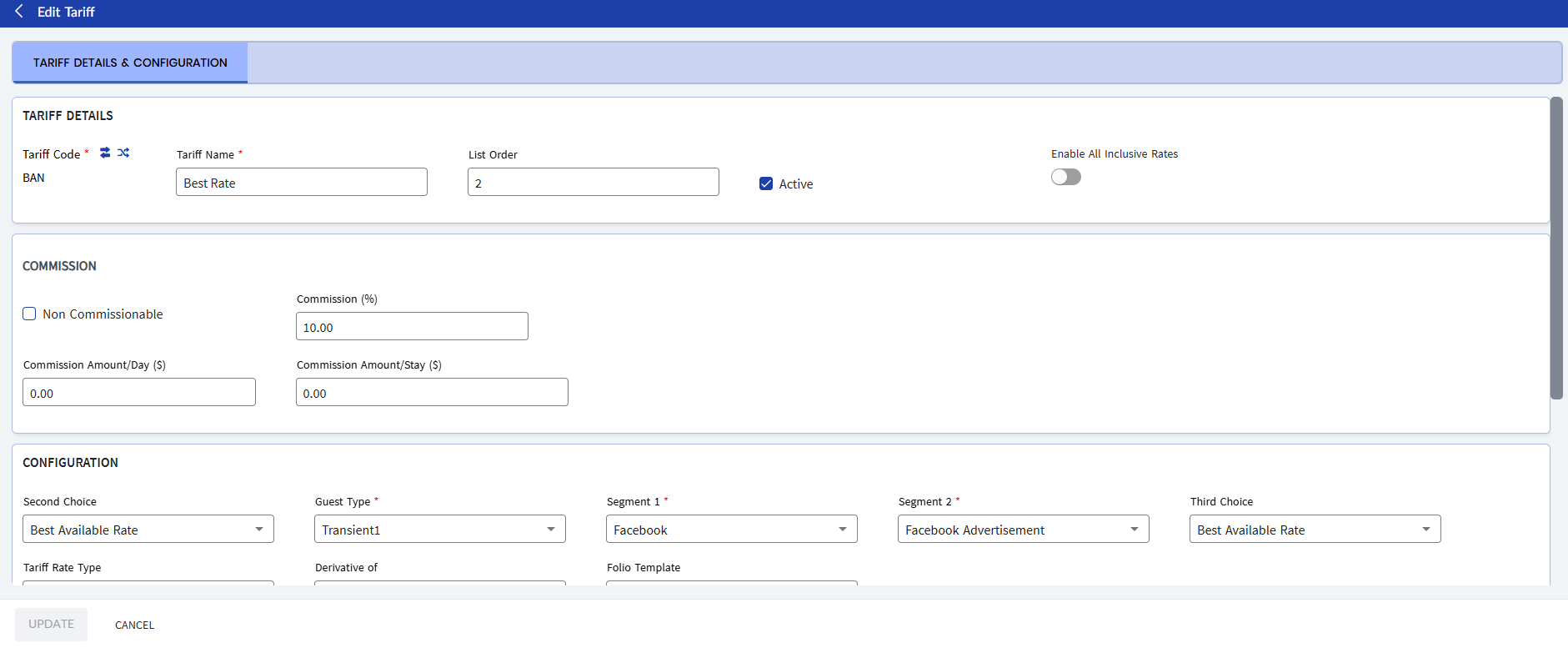
In the Tariff Details & Configuration tab, refer to the following table and fill in the fields:
|
Field |
Description |
|---|---|
|
Tariff Details |
|
|
Tariff Code |
A unique code to represent the tariff. Once created, the tariff code cannot be modified. Up to 15 alphanumeric characters are supported. |
|
Tariff Name |
A name for the tariff. Up to 50 alphanumeric characters are supported. |
|
List Order |
The position in which the tariff record must appear in the grid and the Tariff field. The system automatically generates a value based on the value of the previously created list item. |
|
Active |
When enabled, indicates that the tariff is active. If not, the tariff is not listed in the grid and the Tariff field. |
|
Enable All Inclusive Rates |
|
|
Commission |
|
|
Non Commissionable |
When enabled, indicates that the agency will be unable to receive commissions. The Commission (%), Commission Amount/Day, and Commission Amount/Stay fields will not be available for selection when this flag is enabled. |
|
Commission Percentage (%) |
The percentage of commission to be paid to the travel agency. |
|
Commission Per Day |
The per day commission set on the selected travel agency account. |
|
Commission Per Stay |
The per stay commission set on the selected travel agency account. |
|
Configuration |
|
|
Second Choice |
An alternative tariff that can be suggested to the user when the selected tariff is not available. |
|
Guest Type |
The guest type to which the tariff must be linked. |
|
Third Choice |
An alternative tariff that can be suggested to the user when the tariff added as the second option is not available. |
|
Tariff Rate Type |
This field is used for zero rate tariffs. The available options are Comp (complementary charges will be collected from the guest) and No rate (no charges will be collected from guest). |
|
Derivative of |
Indicates that the tariff rate will be derived from the parent tariff selected in this field. |
|
Tariff Minimum Rate Required |
When enabled, indicates that the tariff requires a minimum rate to be specified while booking reservations. |
|
Folio Template |
Select a preferred folio template from the drop-down list. The templates created in the Folio Template screen (Settings à Template Setup) will be available for selection here. The template selected here will be attached to the reservation when this tariff is selected for the reservation. |
|
Collect Extra Fee |
When enabled, the Recurring Charges section that includes options to configure recurring charges for the tariff appears in the screen. When the created tariff is added to a reservation, the configured charges are collected from guests along with the room charges. |
|
Room Revenue PostType |
Select the post type against which the room charge revenue for the reservation must be tracked. |
|
Recurring Charges |
|
|
Amount |
The flat amount or percentage of room rate that must be calculated as additional charges. |
|
Fee Type |
Select whether the additional charges must be a flat amount or a percentage. |
|
Frequency |
Select Daily from the drop-down list. When selected, it indicates that the additional charges will be calculated separately for each day of stay. |
|
Search by Post Type #, Post Type Name |
Search for and select the post type against which recurring charges must be posted. |
|
Allowed Reservation Type(s) |
Select if the tariff should be available for nightly or hourly reservations or for both. |
|
Other Setup |
Enable one or more of the following flags, as required:
|
Click Create. The tariff is created successfully.
Users can also perform the following actions in the Tariff screen:
-
Modify a tariff using the Edit icon.
-
Delete a tariff using the Delete icon. A tariff cannot be deleted when in use.
-
Copy the tariff details with a new tariff code using the Copy icon.
-
Drag a tariff to change positions within the grid using the Drag icon.
-
Search for a tariff using the tariff code or name.
Creating Tariffs with All Inclusive Rates
Users can create tariffs that combine charges such as room charges, service fees, taxes, and other costs into a single, all-inclusive rate. However, when creating or modifying these tariffs, users must include the room charge component as one of the charges.
In addition, if the tariff is already attached to a reservation, users cannot modify it to include the combined charges. If attempted, the following message will be displayed: Tariff is being associated with Reservation/Package.
Once a reservation is created using the configured tariff, all the charges (such as room rates, service fees, taxes, etc.) will be grouped together and displayed as a single item on the guest's folio. However, users can still view a breakdown of each individual charge by navigating to the All Inclusive folio tab in the Folio screen.
Navigate to Settings à Rates à Tariffs.
Click Create Tariff. The Create Tariff screen appears.
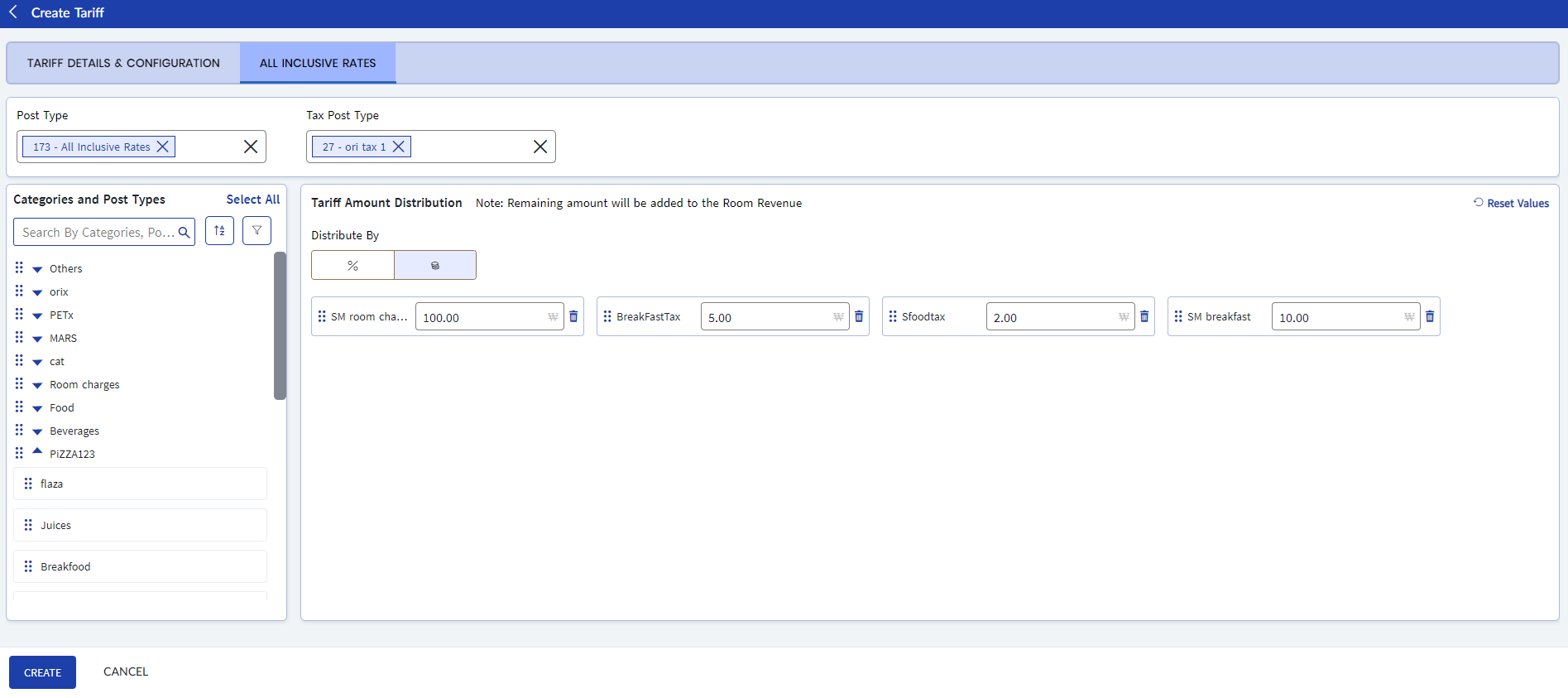
Fill in the preferred details and enable the Enable All Inclusive Rates flag. The All Inclusive Rates tab will appear.
Navigate to the All Inclusive Rates tab.
Refer to the following table and fill in the preferred details:
|
Field |
Description |
|---|---|
|
Post Type |
Search for and select the preferred post type to be displayed in the guest’s folio when all-inclusive rates are posted. |
|
Tax Post Type |
Search for and select the preferred tax post type to be displayed in the guest’s folio when all-inclusive rates are posted. |
|
Categories and Post Types |
Select the preferred charges to be included in the tariff and drag and drop them into the Tariff Amount Distribution section.
|
|
Tariff Amount Distribution |
|
|
Distributed By |
Select the Percentage or Flat Amount icon to enter a value for each charge added to the tariff. Users can also perform the following actions in this section:
|